14 min read
Certificates, provisioning profiles, bundle IDs: the iOS signing glossary for web developers
Certificate, provisioning profile, bundle ID, UDID, entitlements, Team ID: each iOS signing term explained with a web analogy, plus who checks what at install.
A developer I will call Marc, a composite of several people who have written to me, has a Capacitor app that works in his browser and on his Android phone. He pushes it to a CI job for iOS and gets this: Provisioning profile "MyApp Staging" doesn't include signing certificate "Apple Distribution: Marc Dupont (ABCDE12345)".
He reads it three times. He knows what a certificate is, vaguely, from HTTPS. He has no idea how a profile relates to it, or which one is wrong. So he does what everyone does and regenerates things at random until the error changes.
I think the vocabulary is the wall, not the difficulty. Apple has about ten words for what a web developer would call three ideas. iOS signing answers one question, “who is allowed to put which app on which device”, and every term in the glossary is a piece of that answer.
This article names the pieces, maps them to things you know from the web, and walks one build from start to finish. It does not repeat the how-to: the commands to create a certificate without a Mac are in a separate article, and the story of automating it is in what I learned automating iOS code signing.
The whole chain in one picture
Before any definition, here is the shape. Six objects, one team that owns them, and a file in the middle that joins them.
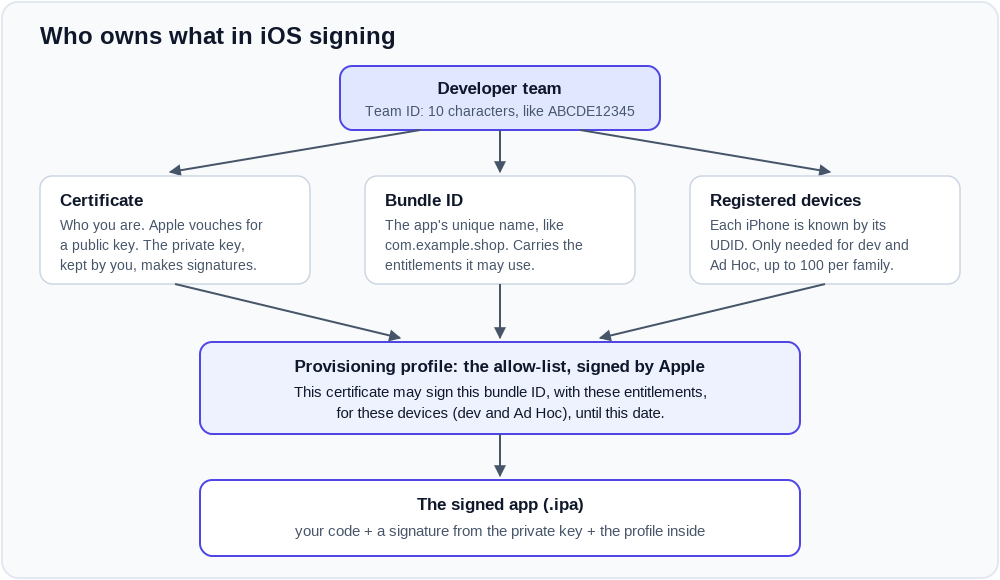
Read it as a sentence. The certificate says who signs. The bundle ID says which app. The devices say where it may run. The profile is Apple’s signed statement that this certificate may sign this app for these devices. The app carries a signature and a copy of that profile, so a phone can check everything offline.
The glossary
I group the terms by the job they do. Each entry gives the web analogy first.
Who you are
Apple Developer Program membership. The paid account, individual or organization, that gives you access to signing at all. Everything below lives inside it.
Team and Team ID. Your membership has a team, and the team has a Team ID, a 10-character string such as ABCDE12345. Think of it as your account or organization ID on a cloud provider: it appears in other identifiers and in error messages, and you find it in your developer account. When Apple’s tooling says “development team”, it means this. The famous error “requires a development team” means the build did not know which team to sign for.
Certificate. This is the closest to something you already know. A certificate is Apple’s statement that a public key belongs to your team, the same idea as a TLS certificate saying a public key belongs to a domain. The matching private key stays with you. Only the private key can make a signature, so a certificate without its key is a public document: it identifies you and cannot sign anything.
CSR (certificate signing request). Exactly what it is on the web. You generate a key pair, send the public half with a signature to prove you hold the private half, and Apple answers with the certificate. The CSR is how you get a certificate without ever sending Apple your private key.
.p12 file. A password-protected bundle holding the certificate and its private key together. It is what you hand to a build machine so it can sign. Whoever holds the file and its password can sign as you.
Two kinds of certificate matter here. Apple’s certificate page lists Apple Development for running apps on devices while you build, and Apple Distribution for distributing apps or submitting them to App Store Connect. Old tutorials say “iOS Development” and “iOS Distribution”, the names through Xcode 11. Apple says Development certificates belong to the individual who created them, and Distribution certificates belong to the team and can be created only by the Account Holder or an Admin.
Which app
Bundle ID. The unique name of your app, in reverse-domain style: com.example.shop. If you own example.com, you flip it. This is why the web analogy works so well: it is a namespace that nobody else should collide with, like a package name or a Java-style package. For a Capacitor app, it is the appId in capacitor.config. Apple’s rules, as far as I could check, are alphanumeric characters, hyphens and periods, and it must be unique across the store.
Treat the bundle ID as permanent: once an app record exists in App Store Connect under that name, changing it effectively means creating a different app. That is my experience, not a sentence I found on an Apple page.
App ID. Apple’s portal calls the registered form of a bundle ID an App ID. In practice it is the bundle ID plus the Team ID prefix, plus the capabilities you switched on.
Entitlements and capabilities. Entitlements are permissions an app declares, such as push notifications or associated domains. The closest web analogy is the permissions block of a browser extension manifest, or OAuth scopes. Capabilities are the switches in your App ID; entitlements are the matching entries inside the signed app. They travel inside the profile. Apple’s documentation says that once an App ID has a managed capability, provisioning profiles for that App ID automatically include the matching entitlements.
Which device
UDID. The unique identifier of one device. It is a device’s serial for Apple’s purposes. You register it in the portal by name and UDID, and that registration is what lets a development or Ad Hoc profile include that phone. Think of it as an IP allow-list entry, except it names one specific phone forever.
Apple’s rule, which I checked: members can register up to 100 devices per product family per membership year. iPhone and iPad count separately. Disabling a device during the year does not free a slot. At the start of a new membership year you can remove devices to get back to 100.
What joins them
Provisioning profile. The file in the middle of the map. A profile is signed by Apple and lists: which certificates may sign, which App ID it covers, which entitlements are granted, and for development and Ad Hoc, which devices may run the app. It also has an expiry date. If I had to pick a web analogy, it is an allow-list policy, in the spirit of an IAM policy or a CORS configuration: it does not prove anything by itself, it says which combinations are permitted.
Apple’s documentation describes profile types as development, Ad Hoc and App Store Connect (the App Store type). A profile is tied to one App ID. Unlike the certificate, which is shared across your apps, you generate profiles per app.
How you talk to Apple
App Store Connect API key. An API token with a role, which you create once in App Store Connect under Users and Access, Integrations. It comes as a .p8 file (a private key you can download only once), plus a Key ID and an Issuer ID. Your tooling uses these to sign a short-lived JWT for each request, the same pattern as many cloud service account keys. This key is how a script creates certificates and profiles and uploads builds without a browser. It is not a signing key for apps; the certificate does that. Mixing those two up is the most common confusion I see.
How you number it
Version vs build number. Two different fields, and they map to something familiar. The version (CFBundleShortVersionString) is the public label users see, like 2.4.1: think semver. The build number (CFBundleVersion) identifies each upload of that version, like a CI run number. Apple’s upload rule, which I explained with a real failure in the TestFlight article, is that each upload for a version needs a build number higher than the previous one.
Development, Ad Hoc and App Store: what changes
The same app can be signed three ways, and the glossary terms behave differently in each.
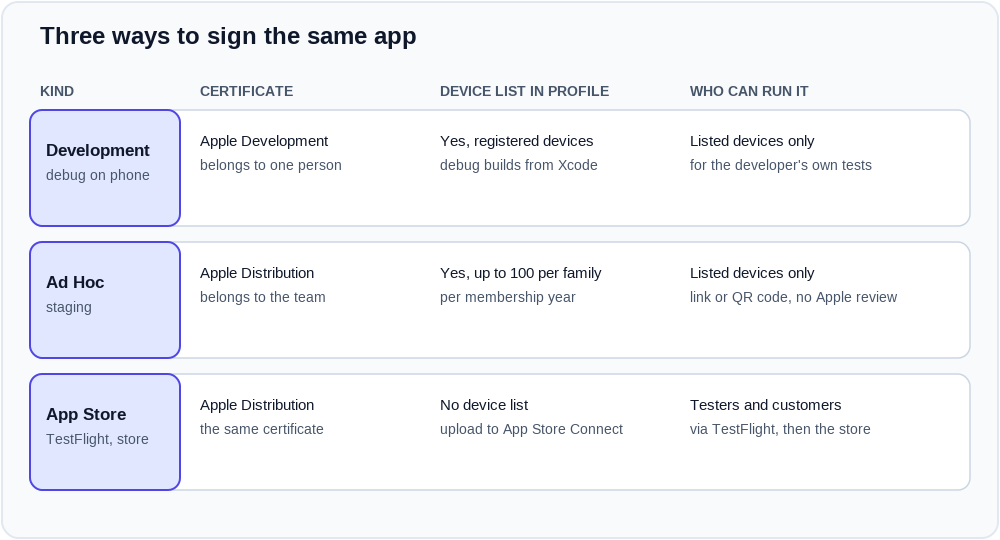
Development is for you. It uses an Apple Development certificate that belongs to one person, and a profile with a list of registered devices. It is what Xcode uses when you press Run on your own phone.
Ad Hoc is for a handful of testers without Apple in the loop. It uses the team’s Distribution certificate and a profile that lists devices. Apple’s 100-per-family limit applies. There is no Apple review and no TestFlight: you send a link, the phone installs the file, and the phone checks that its UDID is on the list. This is the staging path in most pipelines, including mine.
App Store is for everyone else, and covers TestFlight too. It uses the same Distribution certificate, and its profile has no device list. The build goes to App Store Connect, and Apple decides who sees it.
The Distribution certificate is the same for Ad Hoc and App Store. Only the profile and the export method change, so a team needs one such certificate, not one per kind.
A build from A to Z: who checks what
Now the sentence from the first picture becomes a process. Follow one commit, and note who verifies each claim.
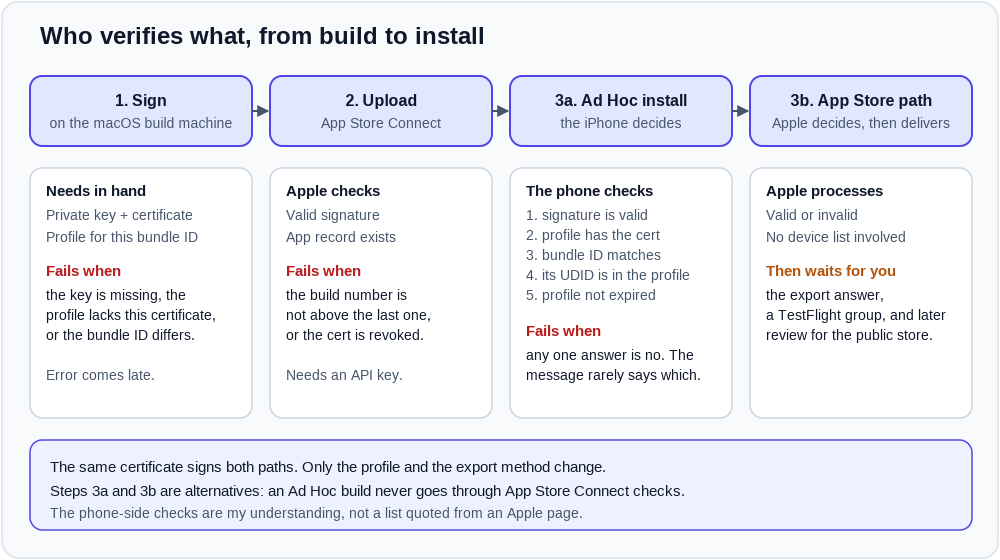
Step 1, signing. A macOS machine has the private key, the certificate and the profile. The compiler signs the app with the key and embeds the profile. This step fails locally if the key is missing (“no signing certificate found”), if the profile does not list that certificate (Marc’s error), or if the bundle ID in the project differs from the profile. Everything here is local. Apple is not contacted.
Step 2, upload. For the store path, the build goes to App Store Connect using the API key. Apple checks the signature and the identifiers, and checks the build number against your last upload. This is where “the build number must be higher” appears, and it appears after a long build, which is why it hurts.
Step 3a, an Ad Hoc install. The phone is the judge, and from what I know it asks five questions: is the signature valid; does the embedded profile list the certificate that signed it; does the bundle ID match; is my UDID in the list; has the profile expired. Any single no is an install failure, and the message rarely says which. I have not found Apple publishing this list in this form, so treat the order as my mental model, not a specification.
Step 3b, the App Store path. There is no device list. Apple processes the build, you answer the export compliance question, and a TestFlight group or a store release takes it from there. Review applies to the public store.
If you remember one thing: the profile is checked twice, once by whoever signs and once by whoever installs, and both sides must agree about the certificate and the bundle ID.
Look inside a profile yourself
The profile is a signed plist, so you can read one. On a Mac:
security cms -D -i embedded.mobileprovision > profile.plist
/usr/libexec/PlistBuddy -c "Print :ExpirationDate" profile.plist
/usr/libexec/PlistBuddy -c "Print :Entitlements:application-identifier" profile.plist
On Linux or Windows with openssl, the profile is a CMS (PKCS#7) container, so this reads it:
openssl smime -inform der -verify -noverify -in embedded.mobileprovisionAn .ipa is a zip, and the profile sits inside it:
unzip -p MyApp.ipa 'Payload/*.app/embedded.mobileprovision' | openssl smime -inform der -verify -noverifyI tested the openssl commands on macOS (LibreSSL 3.3.6) with a profile-like file I signed myself, not a real Apple profile, so I did not see Apple’s real fields. -noverify skips Apple’s certificate chain, since you only want to read the content. For a certificate you hold, openssl x509 -in cert.pem -noout -subject -enddate prints who it names and when it ends.
How long things last
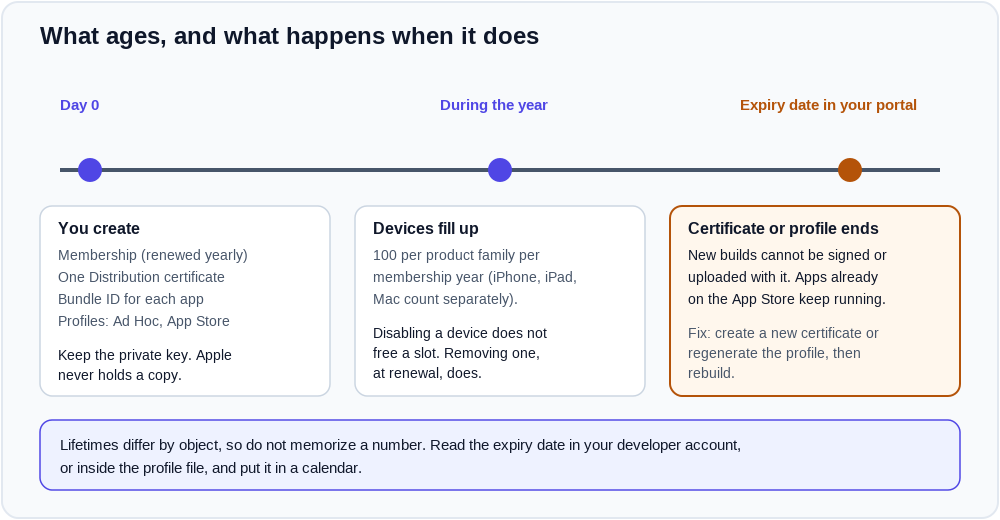
Here is what I could and could not verify. Numbers on this topic get copied from post to post.
| Claim | Status |
|---|---|
| Up to 100 devices per product family per membership year; disabling does not free a slot | Checked on Apple’s devices page |
| Distribution certificates belong to the team; only an Account Holder or Admin can create them | Checked on Apple’s certificates page |
| An expired iOS Distribution certificate does not break apps already on the store, but you cannot upload new builds signed with it | Checked on Apple’s certificates page |
| Profiles last about a year | Appears in Apple’s older archived guide and forum answers; I did not find it on a current help page |
| Distribution certificates lifetime | Apple’s current page does not state it. The portal shows the exact date for yours |
| “Three distribution certificates per account” | Widely repeated, and I used it in earlier articles. I could not find it on a current Apple page. Apple’s wording says only one type of each distribution certificate is allowed per team |
That last row needs a plain admission. In what I learned automating iOS code signing and the certificate how-to I wrote that the limit is “generally three”. Apple’s page words it differently, and a number you cannot cite is a number you should hold loosely. The practical advice does not change: one Distribution certificate per team, shared across apps, with its private key backed up.
In practice, an expiry means a build that fails on a day nothing in your code changed. Put the dates in a calendar.
Test yourself
Five questions. Answers follow.
- Your CI says “no signing certificate found” but the certificate exists in your Apple account. What is probably missing on the build machine?
- You rename your app’s bundle ID in your project and the build now fails to sign. Which object still names the old one?
- A tester gets “unable to install” on a staging build, and other testers are fine. What do you check first?
- Does the App Store Connect API key sign your app?
- Version
1.2.0, build 14 was uploaded. You rebuild and upload version1.2.0with build 14 again. What happens?
Answers. (1) The private key. A certificate without its key cannot sign. (2) The provisioning profile, and the App ID it was generated for. (3) Whether that tester’s device UDID is registered and included in the Ad Hoc profile, then whether the profile was regenerated after adding it. (4) No. It authenticates your tooling to Apple. The certificate’s private key signs the app. (5) Apple refuses the upload, since the build number must be higher than the previous upload of that version.
When this advice does not apply
If you have a Mac and use Xcode’s automatic signing, most of this happens for you, and the vocabulary matters only when it breaks.
The Apple Developer Enterprise Program, for apps distributed inside a company, follows different rules. I have not used it and this article does not cover it.
If your app uses many capabilities, such as push notifications or associated domains, the entitlements part is bigger than I describe here.
What pkgr does here, and what it does not
pkgr is the tool I built, so here is its place on the map, accurately.
It creates the certificate for you through the App Store Connect API from a wizard. The private key is generated in your browser, and the certificate belongs to the Apple team, shared by every project under it, which matches Apple’s model that distribution certificates belong to the team. It generates the provisioning profiles per project: an Ad Hoc one for staging, which includes the device UDID you register, and an App Store one for production. The workflow signs on a macOS runner in your GitHub repository and deploys to TestFlight. The build number is the GitHub run number, and the version is optional. The signing docs describe the flow.
What stays yours: the Apple Developer membership and the API key, which you create in App Store Connect. The App Store Connect app record for your bundle ID, which Apple’s API does not let me create. Finding your iPhone’s UDID. Choosing the bundle ID, which comes from your Capacitor appId. The review.
Limits I should state. pkgr shows certificate and profile expiry dates but does not warn you before they pass and does not renew the certificate for you. If you upload your own .p12, automatic profile generation is turned off for it. It supports Capacitor projects only. I have not tested it against apps that rely on many capabilities such as push, so check that yourself before relying on it.
Start with one small habit
Next time a signing error appears, ask the questions from the map in order: who signs, which app, which device, and which file allows it. Almost every message is a no to one of them.
If you would rather not own that checklist for every release, you can start free at pkgr.app/early-access. The Free plan covers one project and needs no credit card.
Keep reading
If you have not enrolled yet, the Apple Developer account guide for web developers explains individual versus organization accounts and what slows enrollment down. For the commands that create a certificate and profile without a Mac, read how to generate an iOS Distribution certificate without a Mac, which puts every term above into practice. For what a signed build does after it leaves the runner, deploy to TestFlight from a git push covers the upload, build numbers and the compliance question.